Register Leave and Absence
Efficiently managing leave is essential for both operational planning and employee satisfaction. SIX ERP simplifies the process of submitting leave requests for staff members. This manual provides detailed instructions on how staff members can create and submit their leave requests directly within the system, using the self-service functionalities of SIX ERP.
Log into SIX ERP: Begin by signing into your account with your credentials. Ensure that you have access to the leave management features.
Navigate to Leave Management: From the left-side menu, locate the "Timekeeping > Leave" option.
Submitting a Leave Request
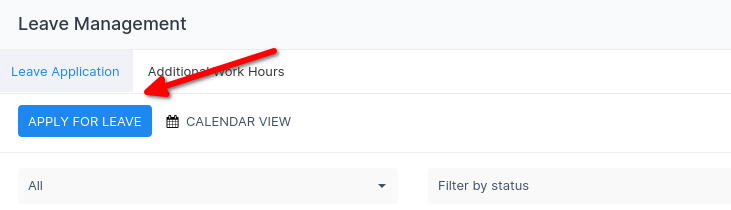
Initiate a New Leave Request: Within the Leave Management section, find and click the "APPLY FOR LEAVE" button. This action will open the leave request form.
Complete the leave request form by entering all necessary details:
Similar to the staff members, fill out the leave form with the necessary details and submit it for approval.

Add a subject line to individually describe the Leave Request.
Select Type of Leave.
Select Subtype.
Fill in From - To Dates. After you set the dates of absence, the system will automatically caluclate the numbers of leave and the availability of leave days for the staff member.

Add a Follower.
Add a Staff member to Handover duties during staff members absence.
Add a Reason for the leave request. In some cases details matter.
Attach supporting documents, especially important in case of Sick Leave or other document dependent Leave Requests.
Finally Submit the request for Approval: Once you are satisfied with the information provided, click the "SUBMIT" button to send your leave request for approval.
Notification and Tracking
Notification of Submission: After submitting your leave request, you will receive a system notification confirming that your request has been received and is pending approval.
Tracking Status: You can track the status of your leave request by revisiting the "Leave" section in SIX ERP. Here, you can see whether your leave has been approved, denied, or is still pending. This section also provides information on any comments or feedback from the approver.

Best Practices
Plan Ahead: Submit leave requests well in advance to ensure sufficient time for approval and to accommodate departmental scheduling.
Clear Communication: Clearly articulate the reasons for your leave in the request form to avoid misunderstandings and to expedite the approval process.
Keep Records: Keep a copy of the confirmation and any communications related to your leave request for your records.
Submitting a leave request in SIX ERP is a straightforward process designed to empower employees with autonomy over their time off while maintaining organizational protocols. By following the steps outlined in this manual, staff members can efficiently manage their leave, ensuring transparency and consistency in handling time off requests.